Tutorial
Quick tutorialGenerate the first review chart in 2 minutes
Start with the original trade export. K-Line converts it, picks market data, lets you confirm the detected trades, and then produces review images. This page is the full walkthrough: prepare the file, upload it, let the app match market data, confirm the detected trades, and export the finished chart.
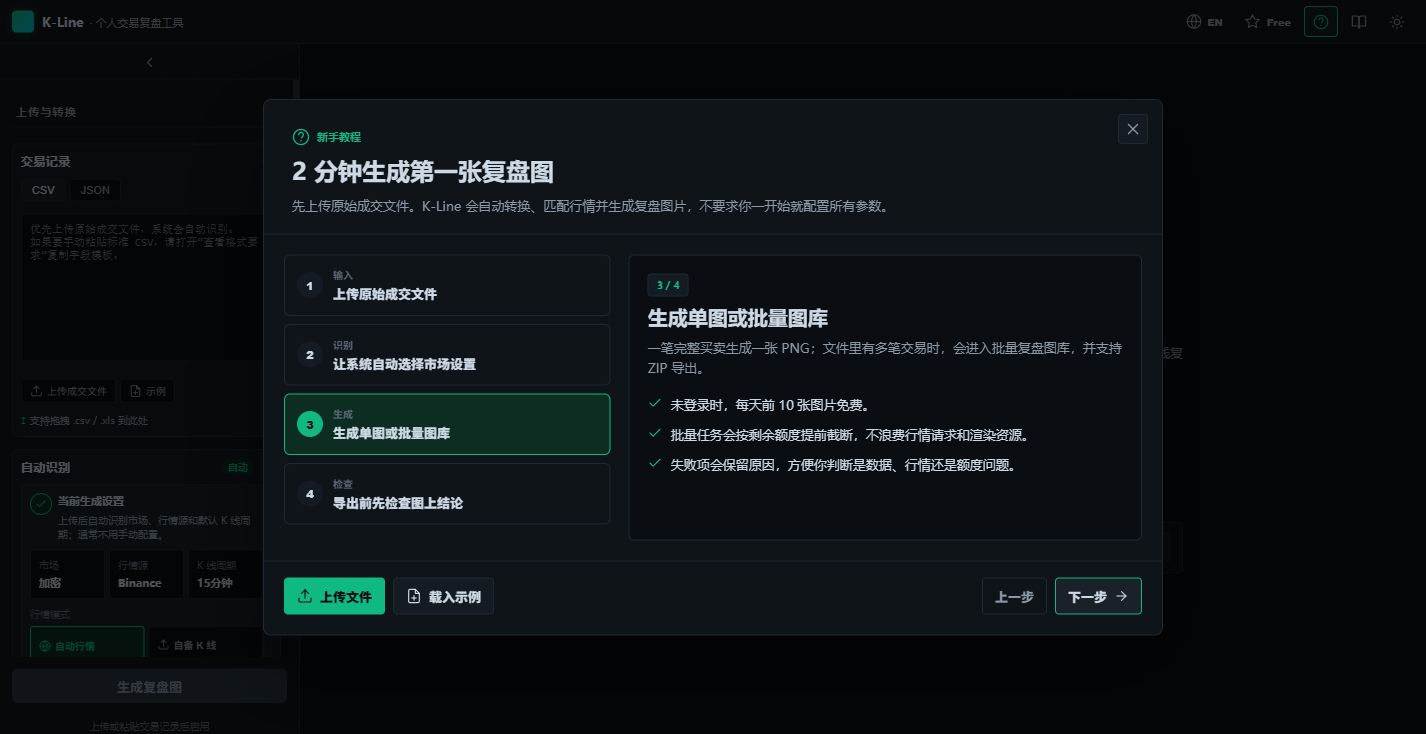
Step by step
From raw trade export to finished review chart
Five steps, in the order the app walks you through them. Every screenshot below is a real product capture, and the standard trade record header referenced in step 1 is trade_id,symbol,event_type,position_side,time,price,quantity,fee,note.
01
Prepare
Start from the trade file you already have
KLinePic accepts raw exports: broker statements, Tonghuashun statements, exchange trade history from Binance, OKX, Bybit and others, MetaTrader reports, and backtest fill logs. If you are building the file yourself, use the standard header trade_id,symbol,event_type,position_side,time,price,quantity,fee,note — or download a ready-made template instead of typing it.
- The fee and note columns may be left empty; everything else is required.
- One trade_id groups all fills of one trade, so partial entries and exits stay on a single chart.
- Backtests: run the backtest first, then export the fills or order log as a table — do not upload strategy source code.
02
Input
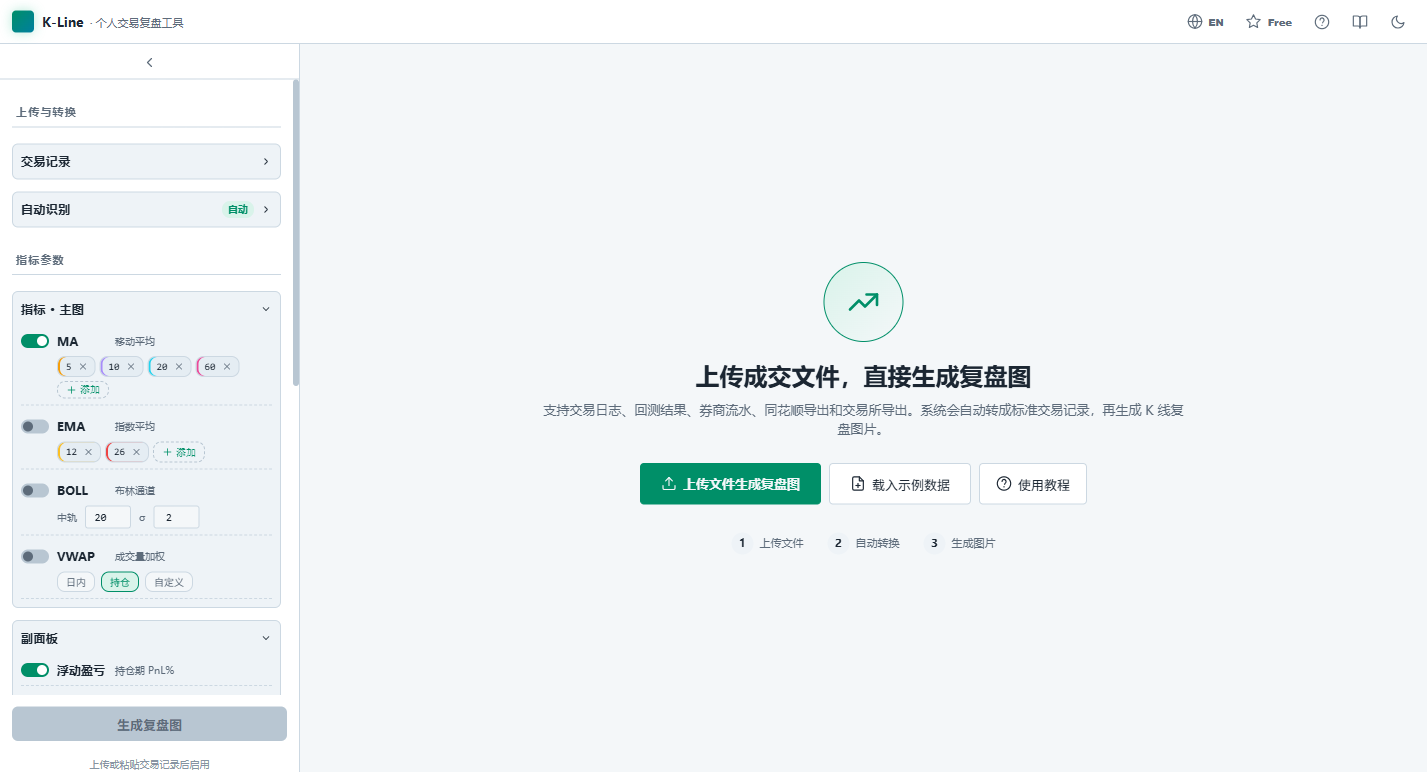
Upload the raw trade file
Drop in CSV, XLS, or JSON exports from brokers, exchanges, backtests, and trading logs.
- Upload first; do not clean columns by hand.
- Common Tonghuashun, broker, Binance, and backtest files use deterministic preprocessing.
- If the file is already in K-Line format, it goes straight to validation.
03
Detect
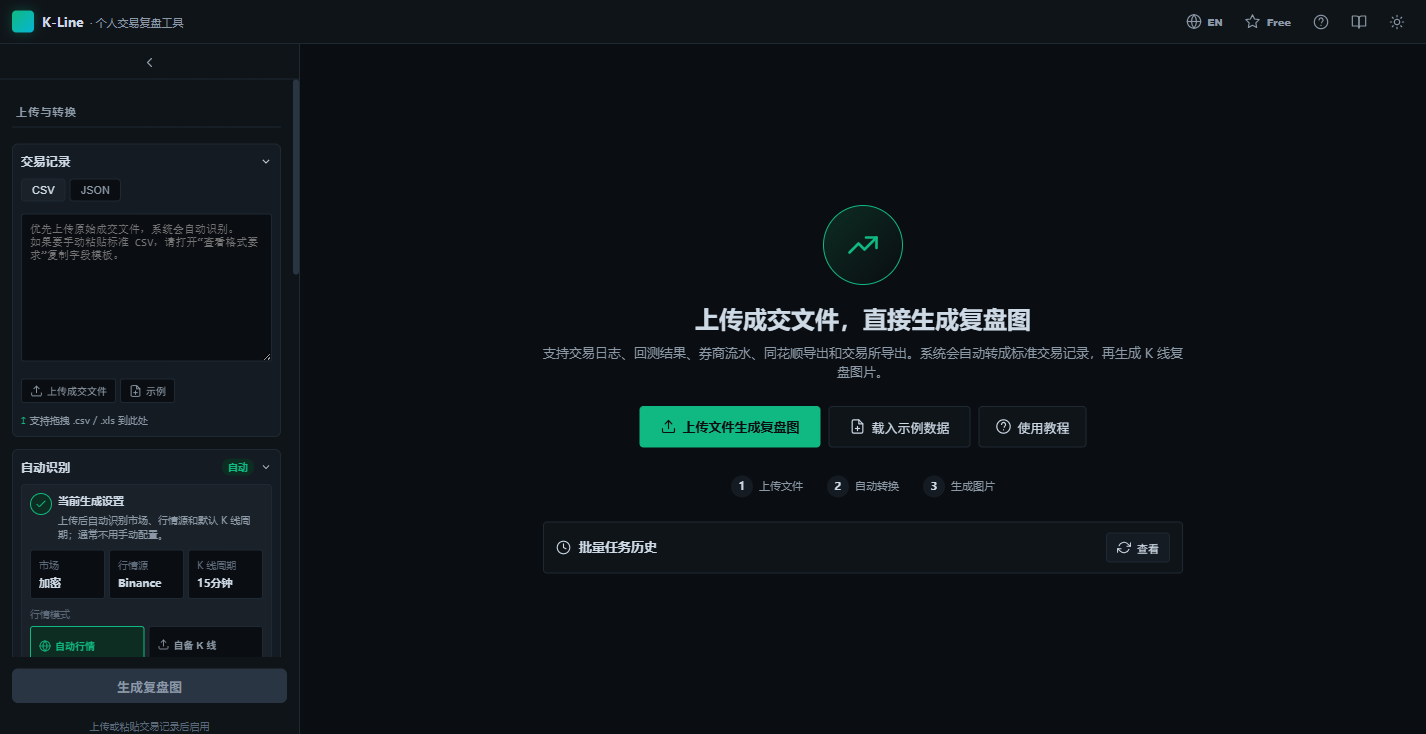
Let the app choose market settings
The app detects market, symbol format, data source, and the default K-line period.
- A-shares default to automatic daily data.
- Crypto uses Binance public K-lines and short periods like 15m, 1h, or 4h.
- Only open advanced settings when detection is wrong or you need your own K-line CSV.
04
Generate
Confirm, then create one chart or a batch gallery
After conversion, check the trade count, time range, and data route. Then generate one PNG or a review gallery with ZIP export.
- The first 20 images per day are free before login.
- Batch jobs are trimmed by remaining quota before rendering, so extra files do not waste resources.
- Failed items stay visible with clear reasons instead of disappearing.
05
Review
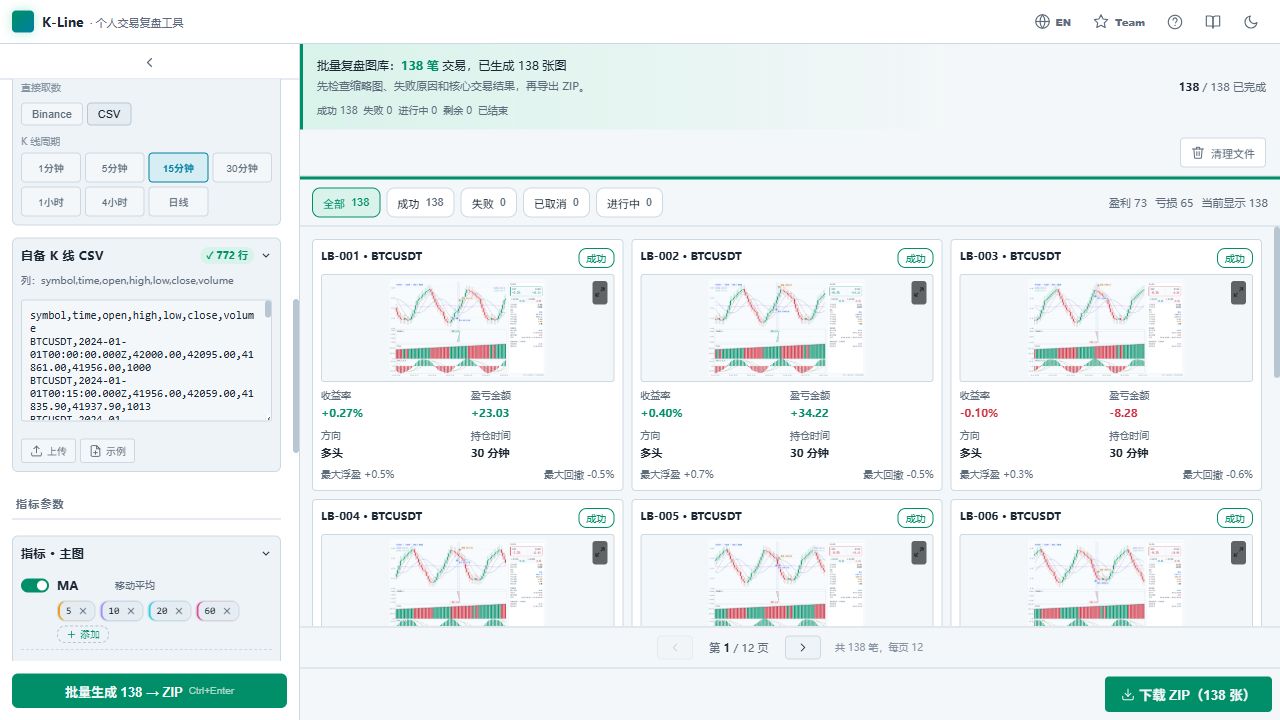
Check the chart before exporting
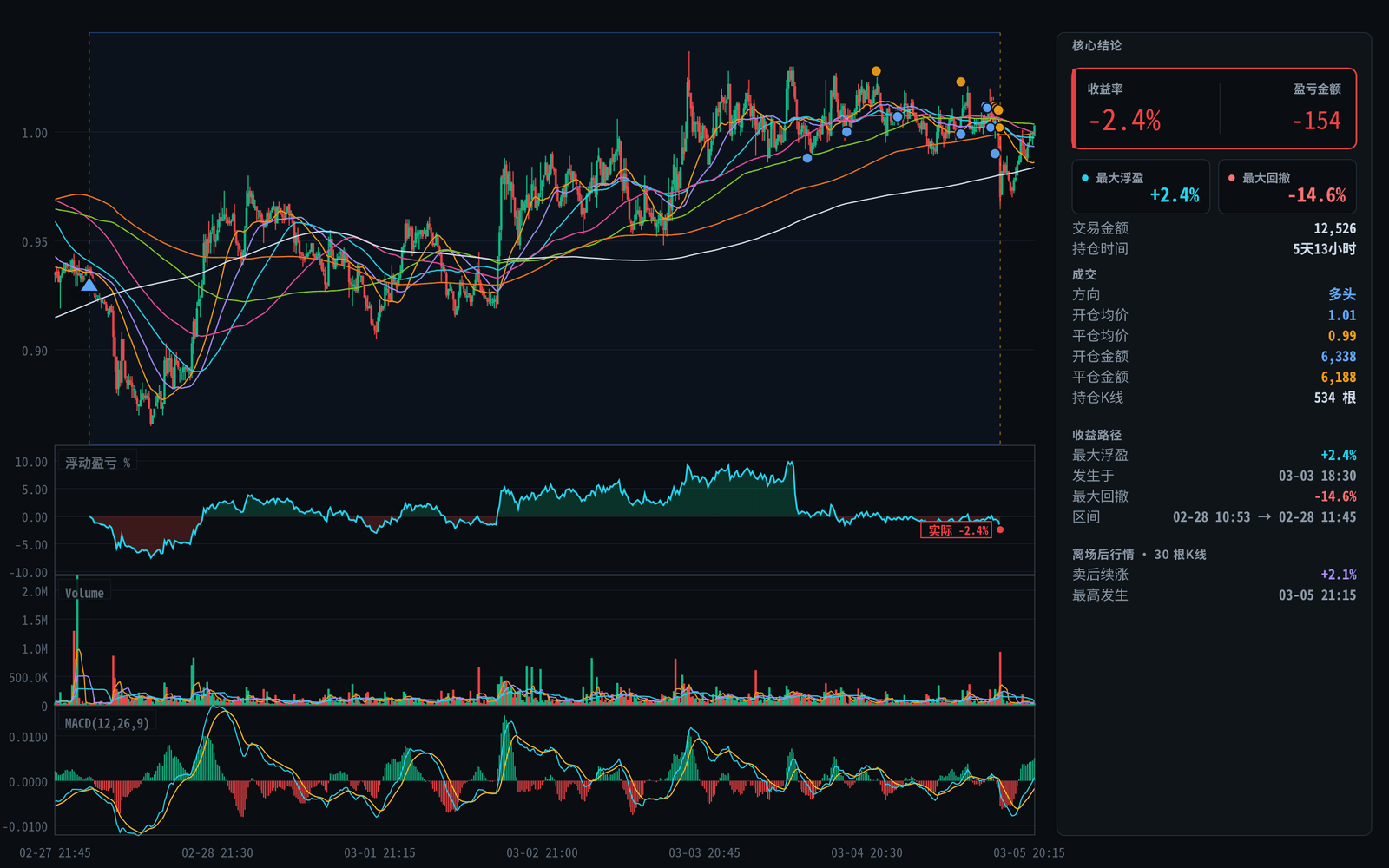
Use the image to inspect entry, exit, holding time, PnL, and context around the trade. When it looks right, download the PNG, export the whole batch as a ZIP gallery, or share the hosted chart link.
- Buy and sell markers point to the actual execution price area.
- The right-side conclusion keeps amount, PnL, and holding time together.
- Export PNG or ZIP after the gallery looks right.
Going further
Quotas, login, and automated chart generation
Account
Login, plans, and redeem codes
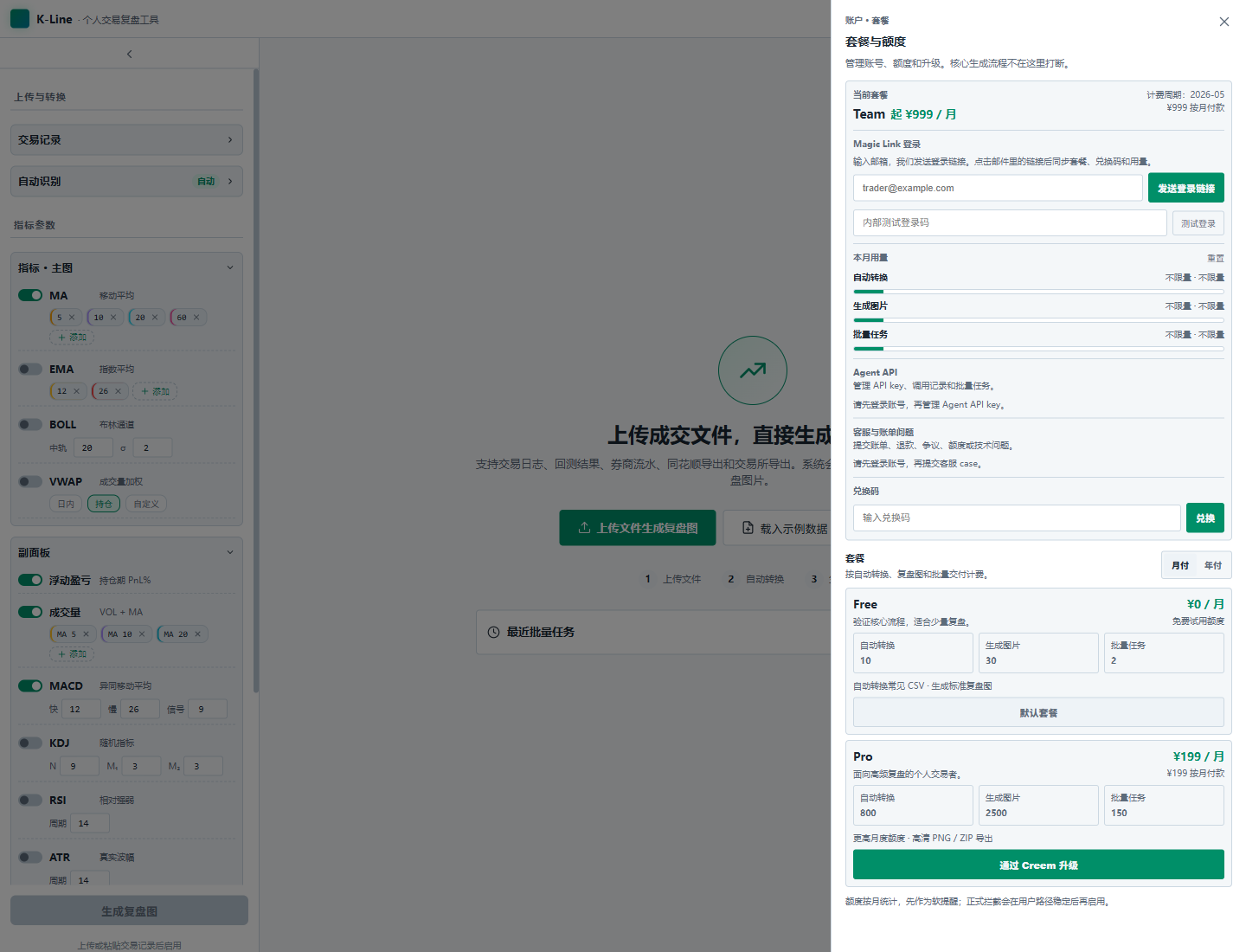
When a page asks you to log in, open Plans & Quota in the top-right corner, enter your email, and click the magic link in the mail — no password to create. Redeem codes are entered on the same panel, and remaining quota is always visible there.
- The first 20 images per day are free before login.
- Free charts keep a small platform watermark.
Agent API
Automate the same workflow from code
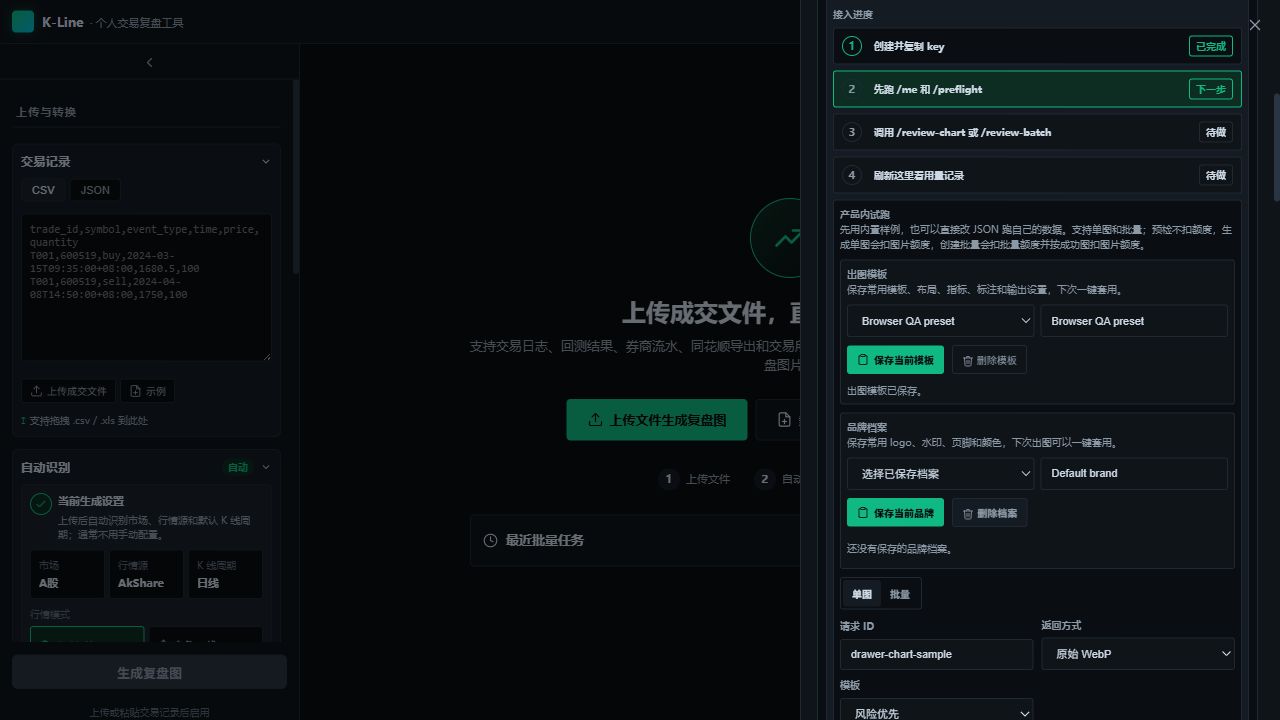
Everything this tutorial does by hand is also exposed through the Agent API: validate a payload with preflight, render one chart, or create a batch job. Frequently used chart configurations can be saved as template presets and reused on every request.
- Discovery starts at the OpenAPI document; the Trade Review Chart API guide covers authentication and pricing.
- Output formats: JSON with base64 PNG, or raw PNG / JPEG / WebP.
FAQ
Tutorial questions
Do I need to clean up my export before uploading?
No. Upload the original file first. Common Tonghuashun, broker, Binance, and backtest files use deterministic preprocessing, and files already in the standard K-Line format go straight to validation. Only touch columns by hand if the row-level validation reports a problem.
What if my file is a backtest, not a broker export?
Run the backtest first, then export the resulting trades, fills, or order log as a table and upload that. Strategy source code itself cannot be converted into trade records.
How much of this is free?
The web workflow needs no sign-up and the first 20 images per day are free before login; free charts keep a small platform watermark. Larger volumes, redeem codes, and the Agent API are managed from the account page after an email magic-link login.
Which markets are matched automatically?
A-shares (6-digit codes such as 600519) default to daily K-lines, crypto pairs such as ETHUSDT use free Binance public K-lines from 15m to 1D, and US stocks, global futures, and forex resolve through Yahoo market data. Anything else works with a custom K-line CSV.