Server time treated as UTC
MetaTrader typically records broker server time, and zones differ per broker. If every marker sits hours off, apply the server-time offset to the time column.
MetaTrader trade history chart
This guide is for MetaTrader 4 and MetaTrader 5 traders who want closed trades drawn on real candles instead of buried in the terminal's history table. Export your account history, convert the closed-trade rows to CSV, and KLinePic renders an annotated review image with entry/exit (B/S) markers, holding window, return, max run-up, max drawdown, and optional indicators such as MACD.
KLinePic is free to start and needs no account to render, so the loop from MT4 statement to finished EURUSD review image takes minutes — for one trade or a whole month in batch.
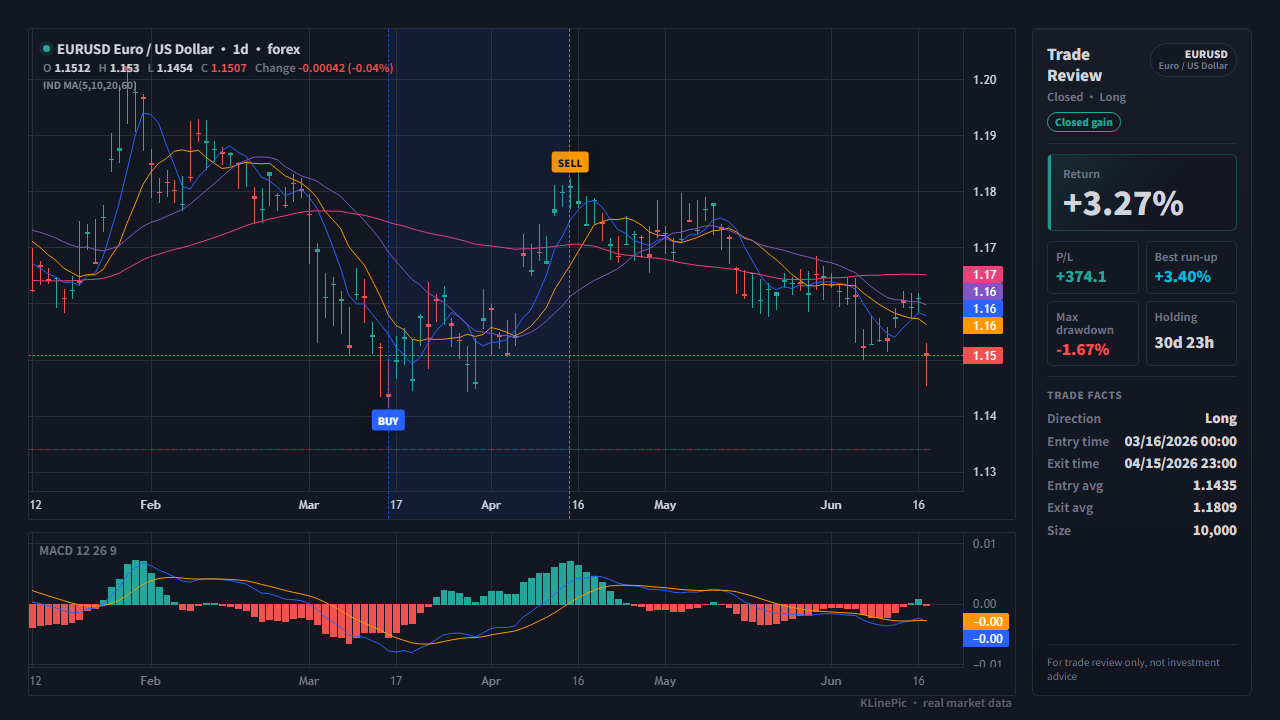
MetaQuotes documents both flows in the official platform help: MT4 in Account History — MetaTrader 4 Help, MT5 in Trading Report — MetaTrader 5 Help. Summarized:
The saved file is HTML, not CSV. Open it in a spreadsheet, keep the closed-trade table, and save as CSV — or paste the rows into the MetaTrader template. Remove your account number and personal details first; only the trade columns are used to draw the chart.
MetaTrader 4's help documents the Account History fields, so the table uses those official names; MT5's help does not itemize report columns, and saved statements may label headers slightly differently (Ticket, Item) — map by meaning. Either way the normalized target is the same: KLinePic reads trade_id, symbol, event_type, position_side, time, price, quantity plus the optional name, fee, and note columns. Extra source columns are ignored on import and listed back to you. The full contract is documented in the data protocol.
| MT4 Account History field | KLinePic field | Notes |
|---|---|---|
| Order | trade_id | The unique ticket number of the trade — a ready-made stable id shared by entry and exit. |
| Symbol | symbol | The traded pair, e.g. EURUSD. Trim broker suffixes such as EURUSD.m. |
| Type | event_type + position_side | Buy is a long, Sell a short. Rows typed Balance are deposits/withdrawals — delete them. |
| Time (opening) | time of the entry event | Dotted YYYY.MM.DD HH:MM format, understood as-is; typically broker server time. |
| Price (opening) | price of the entry event | The price the position was opened at. |
| Time / Price (closing) | time and price of the exit event | Second Time/Price pair on the same row; becomes the exit marker. |
| Size | quantity | Lots. Stay consistent — contract sizes vary by broker; do not mix lots and units. |
| Commission, Taxes, Swap | fee (+ note) | Optional; sum them into fee. There is no separate currency column — to record the deposit currency, keep it inside note as free text, e.g. fee_asset=USD. |
| S/L, T/P, Profit, Comments | not required | Droppable. Keep Profit aside to cross-check the rendered return. |
A MetaTrader statement is one row per closed trade — open and close together. KLinePic reads that shape directly, no splitting needed:
Ticket,Open Time,Type,Size,Item,Open Price,Close Time,Close Price,Commission,Swap,Profit
123456,2026.03.02 08:00:00,buy,0.10,EURUSD,1.08500,2026.03.06 12:00:00,1.09000,-0.50,0,50.00
123457,2026.03.10 09:30:00,sell,0.20,GBPJPY,190.500,2026.03.10 14:00:00,189.800,-1.00,0,140.00
Type buy renders as a long trade and sell as a short, the Item column carries the pair, and the dotted date format is understood as-is. The template ships this exact header; the generic two-rows-per-trade schema from the data protocol works too.
| KLinePic | Manual screenshot + spreadsheet | Typical trading-journal SaaS | |
|---|---|---|---|
| Setup time | Minutes: export, clean, paste | Slow, repeated by hand per trade | Onboarding plus per-platform import setup |
| Account required | No account needed to render | None | Usually requires sign-up first |
| Output | Annotated K-line image with trade metrics | Static screenshot plus separate numbers | Web dashboards and statistics |
| Buy/sell markers on real K-line | Yes, B/S at actual open and close | Drawn manually, easy to misplace | Varies by product and plan |
| Shareable image | Yes, the chart itself is the deliverable | Screenshots without computed context | Often screenshots of dashboards |
| Cost to start | Free to start | Free, but pays in time | Commonly subscription-based |
MetaTrader typically records broker server time, and zones differ per broker. If every marker sits hours off, apply the server-time offset to the time column.
The Type field can read Balance for deposits and withdrawals. Those rows have no market prices — delete them before uploading.
Suffixed symbols like EURUSD.m or GBPJPY.pro will not match market data. Trim them to the plain pair.
Size is in lots, and contract sizes vary by broker. Keep quantity in one convention across the whole file.
Closing a position in parts can leave several history rows for one idea. Render them separately, or group them under one trade_id so one chart shows several exits.
A review chart needs a completed round trip. Remove rows without a close time and price until the trade is closed.
In MT4 open Terminal > Account History, right-click to choose the period, then right-click again and pick Save as Report or Save as Detailed Report. In MT5 open Toolbox > History, right-click, and choose Report. Both flows are documented in the official MetaTrader help and save an HTML statement.
Open the statement in a spreadsheet, keep the closed-trade rows, and save as CSV — or copy them into the MetaTrader CSV template so the headers already match.
Yes. Open Time / Open Price become the entry, Close Time / Close Price become the exit, Type buy or sell sets long or short, and the Item column carries the pair. The dotted MetaTrader date format is understood as-is.
MT4 lists closed trades one per row. The MT5 report separates Orders, Deals, and Positions; a deal is an execution, so one position's open and close usually arrive as separate deal rows — pair them under one trade_id, or use a per-position view.
Typically the broker's server time — each broker chooses its own zone. If markers land hours off, apply the server-time offset to the time column and re-render.
Major and cross currency pairs such as EURUSD and GBPJPY and metals like XAUUSD are matched to public forex candles automatically; you can also upload your own K-line CSV for exact broker data.